Skip to main content Download
Troubleshooting

wireshark.software

Wireshark Guides

Step-by-step solutions for common capture problems, filter usage, performance tuning, and security software conflicts.

First Capture Walkthrough

  1. 1Install Wireshark and accept Npcap on Windows when prompted for live capture support.
  2. 2Launch Wireshark. Select the active interface (often Wi-Fi or Ethernet) showing traffic sparklines.
  3. 3Click the blue shark fin to start capture. Generate test traffic by opening a browser page.
  4. 4Click the red square to stop. Apply a display filter such as http to isolate web traffic.
  5. 5Save the file as a .pcapng for later analysis or sharing with your team.
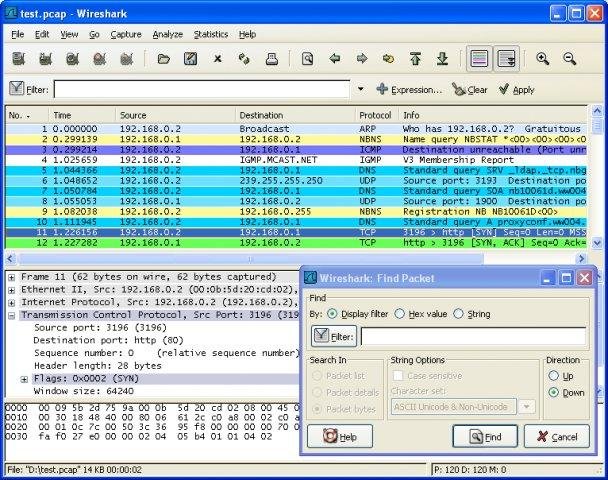
Wireshark analyzing test.pcap: packet list, protocol dissection, and Find Packet dialog

test.pcap — packet list, dissection tree, and Find Packet

No Interfaces Listed

If the interface list is empty, the capture service is not installed or lacks permission.

Windows

  • Reinstall Npcap from the Wireshark installer option.
  • Run Wireshark as Administrator once to test.
  • Disable conflicting VPN capture drivers temporarily.

Linux

  • Install wireshark and wireshark-common packages.
  • Add user to wireshark group: sudo usermod -aG wireshark $USER then log out and back in.

Capture Permissions

Promiscuous mode captures all frames visible on the segment, not only those addressed to your NIC. Some switches restrict promiscuous mode on ports.

On corporate laptops, group policy may block driver installation. Request IT approval for Npcap or use portable capture on an approved mirror port.

Display Filters

Display filters affect only the view, not what was captured. Enter expressions in the toolbar filter box.

ip.addr == 192.168.1.1

tcp.port == 443

http.request.method == "GET"

dns.qry.name contains "example"

Green background means valid syntax. Red means fix the expression before applying.

Large Capture Performance

  • Use capture filters to limit traffic during collection (example: host 10.0.0.5).
  • Enable ring buffer with multiple files for long-running captures.
  • Close unrelated applications when opening multi-gigabyte traces.
  • Split large files with editcap or the File menu split tools.

Antivirus Warnings Explained

Security products may label Npcap or Wireshark installers as potentially unwanted because they enable network sniffing. This is expected behavior for analysis tools, not evidence of malware.

Recommended steps

  1. Download only from the official buttons on our Download page.
  2. Verify SHA256 hash before execution.
  3. Confirm Authenticode signature on Windows properties.
  4. Submit false positive reports to your AV vendor with hash and signer details.
Legal and ethical usage →

Profiles & Best Practices

  • Profiles: Create separate profiles for VoIP, HTTP, and security work with custom columns and coloring rules.
  • Documentation: Note capture time, interface, and filter used when sharing traces.
  • Privacy: Redact sensitive payloads before exporting captures outside your organization.
  • Authorization: Capture only networks you own or have written permission to monitor.

Still have questions?